All users are located under "Settings", divided in customer folders.
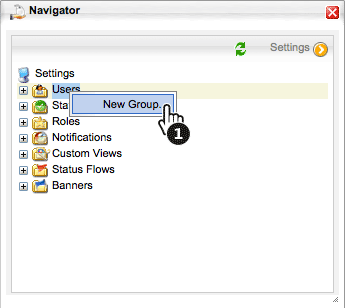
When creating new customer groups (folders), right-click "Users" and select "New Group...".
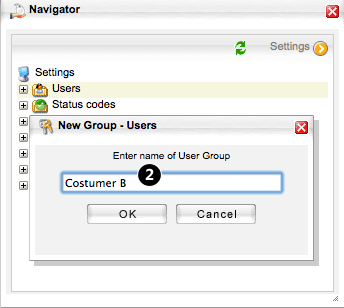
Name the new folder according to the customer name and click "OK". The customer is created in the "Users" folder.
Note: Creating new group folders in root folder is not available in FREE WebProof version. See more about FREE setup here.
Creating Users under "Users"
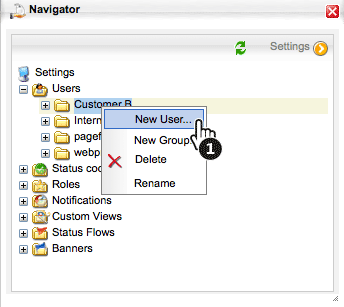
Right-click the customer folder in which the new user will be created. Select "New User... ".
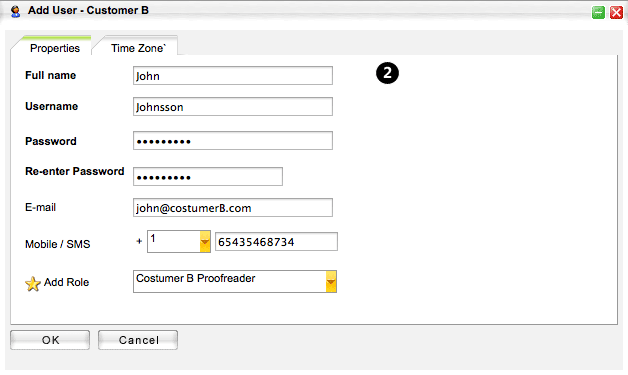
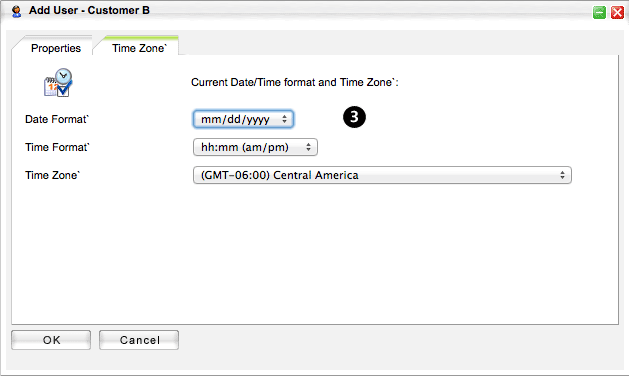
Populate the fields in the displayed dialog. Note that "Username" and "Password" are case-sensitive and the password must be at least 5 characters. Note that duplicate usernames in WebProof are not permitted. It is important that the "E-mail" and "Mobile/SMS" fields are populated, in order to use the "Notifications" function. Country code must ALWAYS be populated.
Assign a role to the user and click "OK".
Attaching Users to a Project Folder
When created under "Settings/Users", the user can be attached to the required folder under "Projects".
It is not possible to attach a user to a project, only a folder.
When attached to a folder, the user will be able to see all projects and subfolders under it.
The requirement for a user to be attached to the main customer folder or only the appropriate project subfolder varies from user to user and customer to customer.
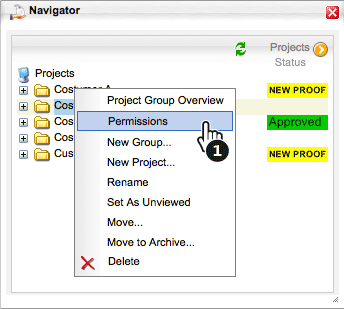
Right-click the folder to which the user will be attached. Select "Permissions".
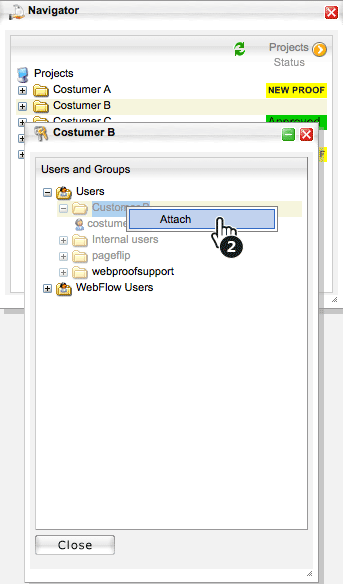
The list of users created under "Settings/Users" is now displayed. Find the user or folder to attach. Right-click and select "Attach".
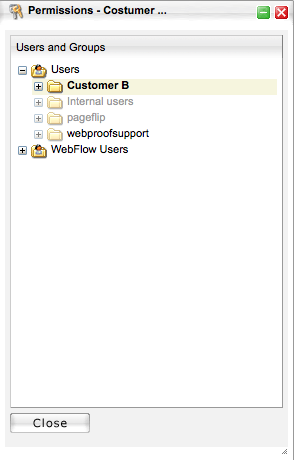
The user/folder is now attached to the project.
Click "OK".
A folder name in bold means that it is attached, which also means so are all users in the folder.
A folder name in normal type means that not all users in the folder are attached. When the folder is opened, the attached users appear in bold text.
A folder name in grey means that no users in the folder are attached.
Comments